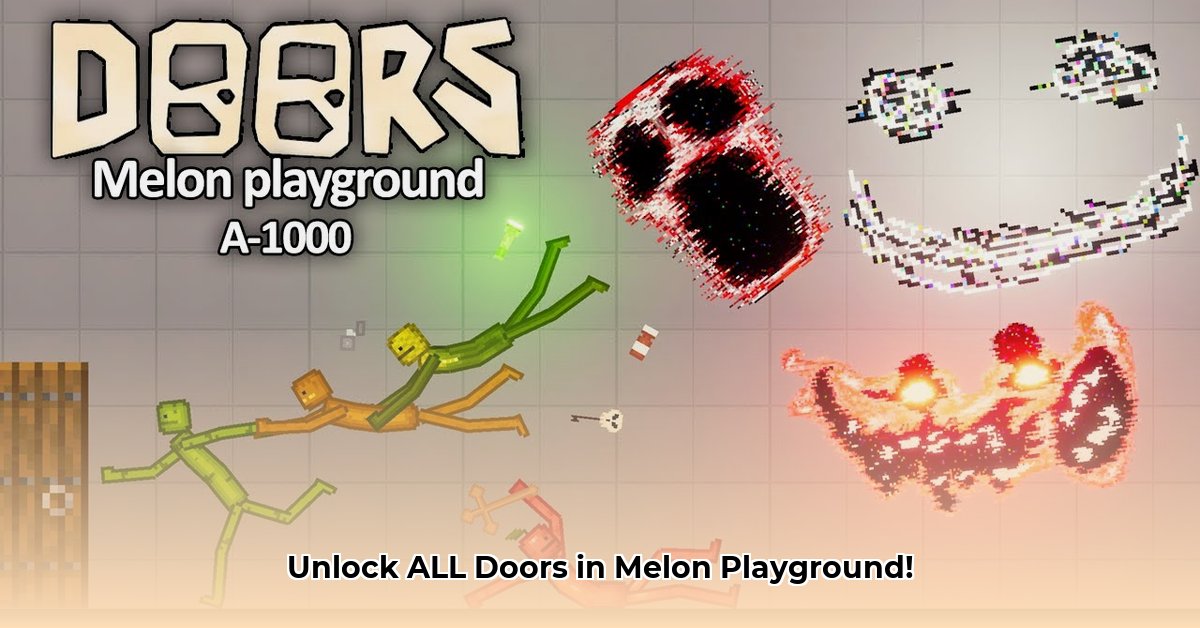
Want to inject the chilling atmosphere of Roblox Doors into your Melon Playground experience? This comprehensive guide provides a step-by-step walkthrough for installing, managing, and troubleshooting Doors mods, ensuring a smooth and safe modding journey. Whether you're a seasoned modder or a curious newcomer, we've got you covered. For more Melon Playground fun, check out this online version.
Exploring Doors Mods for Melon Playground
Melon Playground's versatility is amplified by its extensive modding community. Doors mods, in particular, have garnered significant popularity, offering a range of chilling additions to the game. From iconic characters like Rush and Figure to atmospheric environments replicating the game's unsettling locales, these mods transform your Melon Playground into a truly spooky sandbox. This guide will equip you with the knowledge to seamlessly integrate these mods, enhancing your gameplay while minimizing potential issues.
Types of Doors Mods Available
Doors mods encompass a wide variety of content, adding everything from individual characters and objects to complete overhauls of environments. Some mods focus on recreating specific scenes or encounters from the original game, while others take creative liberties, introducing unique scenarios and challenges. Remember to always download from trusted sources (we'll cover that later!) to maximize your safety and avoid potential issues.
Installing Doors Mods: A Step-by-Step Guide
There are two primary file types for Melon Playground mods: .melmod and .melsave. Let's examine how to install each:
Installing .melmod Files (Adding New Content):
- Download: Download the
.melmodfile from a reputable source. (Always verify the source's legitimacy.) - Locate Game Files: Find your Melon Playground game directory. The location varies depending on your operating system and installation method. It's often found within your app data or downloads folder.
- Place the File: Navigate to the "Mods" folder (or a similarly named folder) within your game directory and place the downloaded
.melmodfile there. - Launch the Game: Restart Melon Playground. Your new mod should now be available within the game.
Installing .melsave Files (Loading a Pre-Made World):
- Download: Download the
.melsavefile from a trusted source. - Locate Saves Folder: Find the "Saves" folder within your Melon Playground game directory.
- Place the File: Move the downloaded
.melsavefile into the "Saves" folder. - Load the Save: Launch Melon Playground and select your new save file from the list.
Key Difference: .melmod files add individual assets (characters, objects, etc.), while .melsave files load pre-configured game states, often including pre-installed mods and specific level setups.
Troubleshooting Common Issues
While modding enhances Melon Playground, it can sometimes lead to problems. Here are solutions for common issues:
- Black Screens/Game Crashes: This often indicates an overload of mods or conflicting assets. Try removing some mods, one at a time, to identify the culprit. Restarting your device can also resolve occasional glitches. Is your device meeting the minimum system requirements for Melon Playground? Insufficient RAM or storage can cause instability.
- Game Freezes: Similar to black screens, this usually stems from resource limitations. Reduce the number of active mods and ensure your device has adequate resources.
- Mod Conflicts: Mods might clash, causing unpredictable behavior. Try installing mods individually to identify any conflicting elements. Carefully read mod descriptions to look for potential compatibility warnings.
Mod Management: Keeping Things Organized
Effective mod management is crucial for a smooth experience. Consider these practices:
- Maintain a Log: Keep a list of your installed mods, including the download source and date. This helps with troubleshooting and ensures you don't install duplicates.
- Prioritize Quality Over Quantity: Don't install every mod you find. Carefully select mods that align with your gameplay preferences and avoid overloading your game.
Safety and Security Best Practices
Prioritizing safety is paramount when downloading and installing mods. Always adhere to these guidelines:
- Download from Reputable Sources: Stick to trusted websites and communities with positive reviews and a history of providing safe downloads.
- Scan Downloaded Files: Utilize reputable antivirus software to scan all downloaded files before installation to detect and remove any potential malware.
- Be Wary of Suspicious Links: Avoid clicking on links from untrusted sources.
Resource Management: Optimizing Game Performance
Melon Playground's performance is directly impacted by the number and size of active mods. Overloading your game with too many mods can negatively affect performance, leading to crashes or lagging. Strive for a balance between expanding your gameplay and maintaining optimal performance.
The Melon Playground Community: Sharing Experiences
The Melon Playground community is a valuable resource. Share your modding experiences, both successes and challenges, to help others and contribute to the overall knowledge base. Reporting bugs and compatibility issues helps enhance the modding experience for everyone.
Conclusion: Embark on Your Modding Adventure
This guide provides a comprehensive approach to installing, managing, and troubleshooting Doors Melon Playground mods. By following these instructions and prioritizing safety, you can enhance your Melon Playground experience with the chilling atmosphere of Doors, while maintaining a stable and safe gaming environment. Remember to always download from trusted sources and manage your mods effectively. Happy modding!
⭐⭐⭐⭐☆ (4.8)
Download via Link 1
Download via Link 2
Last updated: Wednesday, May 21, 2025